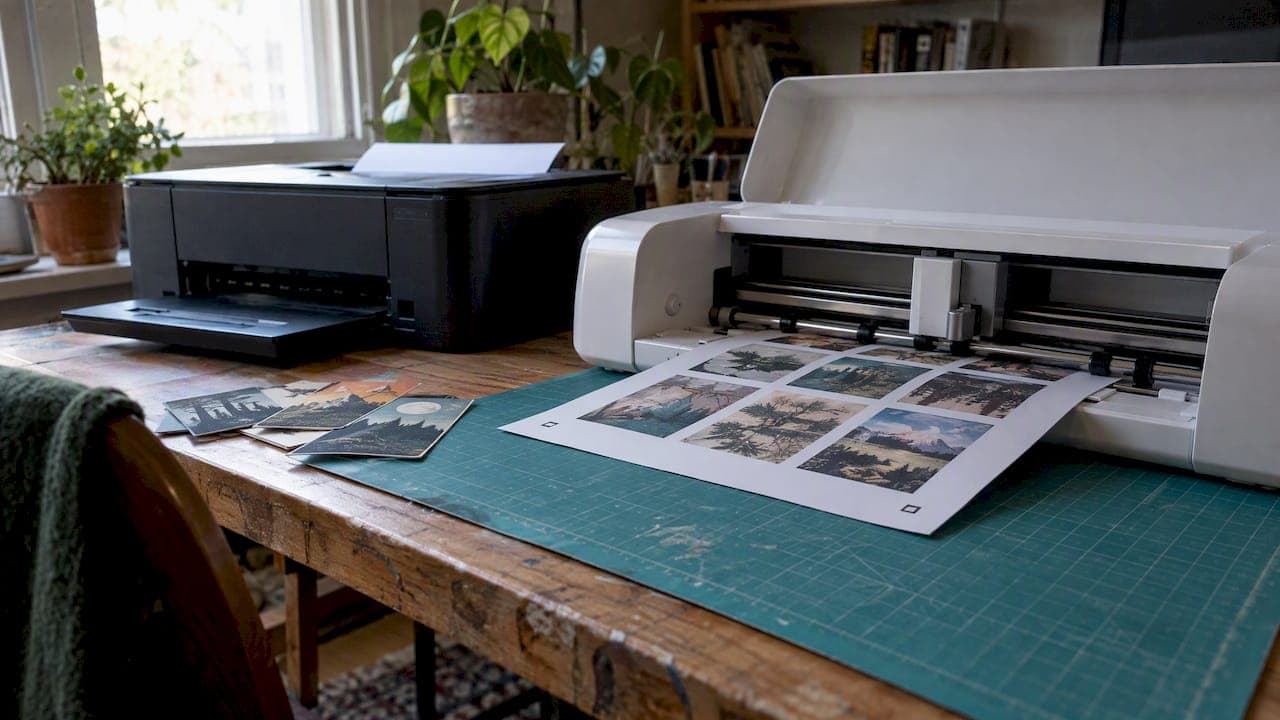
To print and cut cards at home, you design the card, print it on a home printer, then cut it to shape with a cutting machine or a paper trimmer. Most problems come from three things: paper that is too thick for the printer, a shiny surface the machine cannot read, and stopping partway through the process. This guide covers each one, step by step.
We make printable card decks and activity materials for children ages 3 to 8, so we print and cut a lot of small cards. Here is what works.
TL;DR
- Print first, cut second. With a cutting machine, finish the whole print-then-cut flow in one session on one device.
- Use matte paper. Glossy, metallic and glitter finishes can stop a sensor from reading the registration marks.
- Check your printer's weight limit before you buy cardstock. Many home inkjets top out far below true card weight.
- No cutting machine? A paper trimmer and a ruler give clean edges on rectangular cards.
- Planning to mail cards? USPS has exact size and thickness limits for postcard pricing.
Table of Contents
- Two ways to print and cut cards
- What you need
- Choose paper your printer can handle
- Step by step: print then cut with a machine
- When the machine cannot read the marks
- No cutting machine? Cut cards by hand
- Planning to mail your cards?
- Finishing touches
- Print and cut cards for the classroom or home
- Our perspective
- Want finished cards instead?
- FAQ
- Sources
Two ways to print and cut cards
There are two common routes. Which one you take depends on the shape of your cards.

Print then cut with a machine. You print your design with small sensor marks around it. A cutting machine scans the marks and cuts along the outline you set. This suits rounded corners, circles, scalloped edges and any custom shape. Cricut calls this feature Print Then Cut. Other machine brands use similar systems.
Print then cut by hand. You print a full sheet of cards, then trim along crop lines with a trimmer, craft knife or scissors. This is fast and cheap for standard rectangles, such as flash cards, game cards, thank-you cards and trading cards.
Both routes share the same first steps: a good design, the right paper and a correctly set-up printer.
What you need
A basic kit is small:
- A home inkjet or laser printer
- Matte cardstock or heavy matte paper that your printer accepts
- A design file with bleed, if you want color that runs to the edge
- A cutting machine with a sensor, or a paper trimmer with a ruler guide
- A scoring tool, if your cards fold
- Clear matte tape, in case your machine struggles to read its marks
If you do not own a printer or cutter, a local print shop can handle the cutting, or you can order cards from an online printer. This guide is for people who want to do it at home.
Choose paper your printer can handle
This is where most home projects go wrong. Paper is sold by "basis weight," a classification term, not the actual weight of one sheet. Regular copier paper is typically 20 lb. According to a Canon support community answer, 28 lb. is a common upper limit for home inkjet printers, and that is a little thicker than copier paper but nowhere near cardstock.
What that means for you:
- Check your printer manual for its maximum paper weight before you buy a pack of cardstock.
- If your printer has a rear feed or straight-through paper path, thicker stock usually has a better chance of passing through without bending. Your manual will say.
- If your printer cannot take true cardstock, you have options. Print on a lighter matte paper and glue two sheets back to back. Or use a lighter cover-weight stock that the manual allows.
- Test one sheet first. Do not load a full stack of a new paper.
Why matte matters
If you use a cutting machine with a sensor, finish matters as much as weight. Cricut's guidance on compatible materials says Print Then Cut materials should be non-reflective or matte. Metallic, glitter and glossy surfaces are not supported, because they bounce back the light the sensor needs to read.
If you love a shiny look, add it after cutting. Foil, stickers, glitter pens and gloss varnish all work once the cut is done.
Step by step: print then cut with a machine
The exact buttons differ by brand and app, but the flow is the same.
- Build your card at its final size. Set the card to the exact size you want, for example 2.5 by 3.5 inches for a standard playing-card size. Keep important text and faces away from the edges.
- Add bleed. Extend background color a little past the cut line. A cutter is accurate but never perfect, and bleed hides small shifts so you do not get a thin white edge.
- Flatten the design. In most design apps, you need to flatten text and images into one printable layer attached to the cut shape. Cricut's help articles describe this as flattening the layers before printing.
- Print with sensor marks. The app adds black registration marks around your design. Leave them alone. Do not resize the design after the marks are placed.
- Load the sheet on the mat. Place the printed sheet in the mat's corner as shown on screen. Press it flat.
- Cut, and keep going in one session. Cricut advises that the whole process, from printing to the final cut, should happen in one flow from the same device. You can save a project, but if you leave and return, scaling and mark placement can go wrong. Plan a block of time and do it all at once.
- Check one card. Before you cut a full batch, cut a test sheet with one or two cards on it. Look at the edges, then adjust.
Cards with printing on both sides
A common question is how to get a design on the inside or back of a card. The simplest method is to print the front with the machine's print-then-cut flow. Print the back or inside separately, lining it up by feeding the sheet the right way round. Test with scrap paper marked with an arrow first, so you learn which way your printer feeds. Then cut with the front face up so the sensor reads the marks on the printed front.
Double-sided alignment is never exact on home printers. Leave a margin of at least 1/8 inch between artwork on the back and the cut line.
When the machine cannot read the marks
The error "cannot read the cut sensor marks" is the most common Print Then Cut problem. Cricut's troubleshooting page points to several causes. Work through them in this order:
- Light. Direct sunlight and bright overhead lamps can interfere with the sensor. Move the machine, or shade it, and try again.
- A dirty sensor. Make sure the sensor light on the carriage is clean and lit while the machine scans.
- A reflective surface. Glossy or metallic paper confuses the sensor. Switch to matte stock.
- A stubborn sheet. If you must use a slightly shiny paper, Cricut's guidance suggests covering the printed marks with matte transparent tape. It scatters the light and can make the marks readable.
- A changed design. If you resized or moved things after printing, the marks no longer match. Start again from a fresh print, in one session.
Change one thing at a time. If you change three, you will not know which fixed it.
No cutting machine? Cut cards by hand
You do not need a machine to get good cards. For rectangles, hand cutting is often faster.
- Use a trimmer. A rotary or guillotine trimmer cuts straighter than scissors. Line up the crop marks with the guide.
- Print crop marks. Add thin lines in the margins, outside the card area. Cut along them, then trim the white off the card edges.
- Rule and craft knife. Use a metal ruler, a fresh blade and a cutting mat. Make a light first pass, then a firm second one.
- Round the corners. A corner-rounder punch gives a professional look and takes seconds. It also helps cards last in small hands.
- Pre-scored sheets. If you print greeting cards on pre-scored sheets, Red River's printing guide advises creating a custom paper size in your printer properties, which Epson, Canon and HP printers all support.
For a step-by-step on printing folded cards, flat postcards or business cards from a template, Avery's home printing guide walks through its online design tool.
Planning to mail your cards?
Size and thickness decide your postage. According to the USPS Domestic Mail Manual, a card qualifies for postcard pricing when it is rectangular and:
| Measure | Minimum | Maximum |
|---|---|---|
| Height | 3.5 inches | 4.25 inches |
| Length | 5 inches | 6 inches |
| Thickness | 0.007 inches | 0.016 inches |
Cards that fall outside these limits are charged letter-size prices. The same page notes that corners on cardstock may be finished with a radius of no more than 0.125 inches, or 1/8 inch. So if you round corners with a punch, check the size of the punch before you mail a batch.
This is current as of the manual page we checked. Postal rules can change, so confirm on the USPS site before a big mailing.
Finishing touches
A plain printed card gets a lot warmer with small additions after cutting. Canon's card-making ideas suggest ribbons, wax seals and decorative craft punches to turn a basic print into a keepsake. These work well for gift cards and thank-you notes.
For cards children will handle, think about durability:
- Round the corners so they do not poke or fray.
- Let ink dry fully before stacking.
- Keep a spare set printed. Little hands lose cards.
- Store the set in a pouch or small box so it stays together.
Print and cut cards for the classroom or home
Card printing is popular with parents, teachers and homeschool families because a set of cards is cheap to make and easy to adapt. A few uses that work well for ages 3 to 8:
- Feelings cards. Print a set of faces and words, then sort them by mood. Our list of low-prep emotion sorting activities shows how to set this up in about ten minutes.
- Coloring cards. Print line art on matte cardstock and let children color their own. Our emotions coloring pages are a place to start.
- Paper world-building. Cut character and place cards, then invent stories with them. See our worldbuilding activities that use only paper.
- Seasonal games. A printable Christmas bingo pack for pre-K to 2nd grade needs only a printer and a trimmer.
Once your cards are cut, you need somewhere to keep and show them. We cover card deck storage and card deck display ideas for both home and classroom.
Our perspective
We design card decks for a living, and we have learned that the print is only half the job. A card that is cut a little crooked still works. A card that is hard to read, too thin to shuffle or too sharp for a four-year-old does not.

So we think about the child first. Round the corners. Use matte stock that does not glare under classroom lights. Keep the artwork bold and the words few. A card should invite a child to pick it up, not make an adult worry about it.
We also think cards should leave room for play. Our work blends polished design with a bit of playful chaos, and we try to teach emotional literacy without lecturing. A well-printed card gives a child something to hold while they find their own words for a feeling. That is why we care about clean edges and good paper.
— Derek Amarillas
Want finished cards instead?
If you would rather skip the printer, our Duckwave Decks are $7, one-time. You can also explore the characters and story worlds in Socko's Universe. Both are made for children ages 3 to 8.
FAQ
Can I print and cut cards on regular printer paper?
Yes, for practice and for light cards. Regular copier paper is typically 20 lb., so it will feed easily, but it feels flimsy as a card. Many people print on it to test a layout, then move to heavier matte stock once the design is right.
How do I print and cut on cardstock?
First check that your printer accepts the weight, since many home inkjets are rated near 28 lb., which is far below true cardstock. Then use matte stock, print with sensor marks if you are using a machine, and cut in the same session. Test one sheet before you commit a pack.
Why will my machine not read the registration marks?
The usual causes are bright light, a dirty sensor or a glossy surface. Shade the machine, clean the sensor and switch to matte paper. If you must use a shinier sheet, matte clear tape over the marks can help.
Do I need a cutting machine to make cards?
No. A paper trimmer, ruler and craft knife give clean results on rectangles. A machine becomes useful when you want curved or custom shapes, or when you are cutting many cards that must match.
Will my homemade cards qualify for postcard postage?
Only if they are rectangular and between 3.5 by 5 inches and 4.25 by 6 inches, with a thickness of 0.007 to 0.016 inches. Anything outside those limits is charged as a letter. Check the USPS page before you print a batch.
Sources
- How to Print Then Cut in Design Space, Cricut Help Center
- Print Then Cut: Compatible Materials, Cricut Help Center
- Machine cannot read the cut sensor marks, Cricut Help Center
- Canon Community: printing cardstock and basis weight
- USPS Domestic Mail Manual, Retail Mail: Letters, Cards, Flats and Parcels
- How to Print Cards at Home, Avery
- How to Print Greeting Cards at Home, Red River Paper
- Print your own greeting cards, Canon UK